Denny Lee

Ramblings of a data dork: from BI and Big Data to Travel and Food

Installing Hadoop on OSX Lion (10.7)

For starters, this isn’t a production setup, this is just so that I can do some quick Hadoop demos on my Macbook Air (2011).  In this case, my configuration is OSX Lion, 4GB RAM, and 256GB SSD.   As well, a serious shout out to the authors below whom I had referenced to create this post.

References:

In fact, originally I was just going to provide links to their blog posts but ran into some hiccups along the way.  To make it easier to read, I’m going to call out all the steps (hopefully!)


Install the OSX Lion Prerequisites

Ensure that you have installed – as of this post -

  • XCode 4.3.2
  • Java Developer for 10.7

You can find both updates at https://developer.apple.com/downloads/index.action

Make sure to update XCode (Preferences > Downloads) so that the Command Line Tools are also installed (requirement for HomeBrew)


Install Homebrew

If you are not familiar with Homebrew, you are definitely missing the package manager for OSX (it’s their tag line, but it’s also very true).  Homebrew will install packages into their own folders and use symlinks back to the /usr/local folder.  This will allow for much easier removal and isolation of UNIX packages – such as Hadoop.  As well, Homebrew will not require you to use sudo to perform a brew install.


Install Homebrew by going to the Homebrew installation link and running the provided ruby script.  In this case, please go to the link so that way if they change it, these instructions are more or less still up to date.


After installing Homebrew, from the Terminal.app, ensure you run the following:

  • brew doctor – This validates that the installation is okay.  Sometimes it will catch errors (e.g. XCode command line paths are not as expected)
  • brew update – To ensure that the latest Formulas are available and installed in the /usr/local/Library/Formula folder.  Formulas are Ruby scripts that define the installation of a package, you can find the list in the folder or online at Homebrew Library Formula; to make your own, check out the Formula Cookbook.


Installing Hadoop 1.0.1

If all is well, the only thing you have to type into the Terminal.app to install Hadoop is to run:

brew install hadoop


Error: Cannot allocate memory – connect(2)

Yet, one of the reasons I’m writing this post is because I ran into the following error (hopefully you don’t):

Error: Cannot allocate memory – connect (2)

 

01 - cannot allocate memory


Looking at the above URL, the http://www.apache.org/dyn/closer.cgi?path=hadoop/core/hadoop-1.0.1/hadoop-1.0.1.tar.gz, it points to the page:
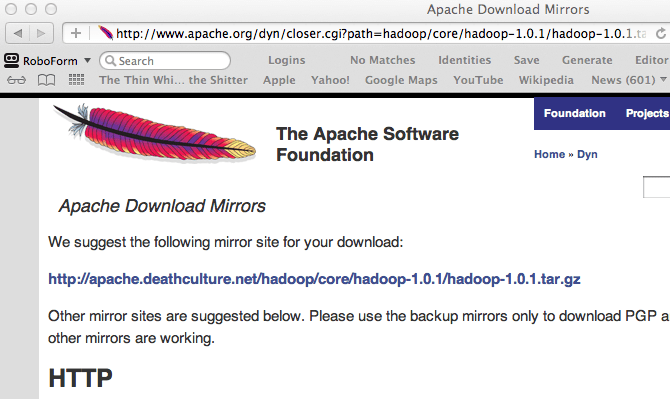
 

02 - view url


i.e. its in fact a redirection error not a memory allocation error.

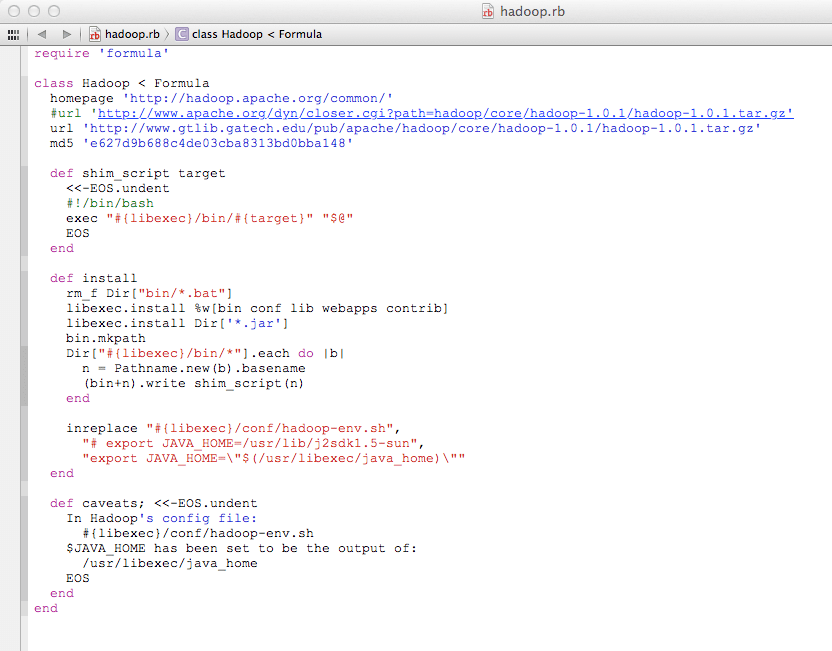
To fix it immediately, you will need to update the Hadoop Formula locally which can be found in the /usr/local/Library/Formulas/hadoop.rb.  Update the link so it points to the mirror site instead of this path.

#url ‘http://www.apache.org/dyn/closer.cgi?path=hadoop/core/hadoop-1.0.1/hadoop-1.0.1.tar.gz’
url ‘http://apache.mirrorcatalogs.com/hadoop/core/hadoop-1.0.1/hadoop-1.0.1.tar.gz’


03 - updated hadooprb


Once you update the hadoop.rb file, you can then go back and re-run

brew install hadoop

and the installation will proceed.

04 - fixed download link


Configure Hadoop

Now you will need to update the Hadoop configuration files to get everything up and running.  The Hadoop configuration files can all be found in the /usr/local/Cellar/hadoop/1.0.1/libexec/conf folder.  The files to be updated are:

  • hadoop-env.sh: These are the Hadoop environment variables, a quick change is suggested to suppress an error message.
  • core-site.xml
  • hdfs-site.xml
  • mapred-site.xml

And thanks to @arbovm for his details at: Flume and Hadoop on OS X.


hadoop-env.sh

Suppress the “Unable to load realm info from SCDynamicStore” error.  As noted in https://issues.apache.org/jira/browse/HADOOP-7489, for a single box deployment, update the text to include the line below.

export HADOOP_OPTS=”-Djava.security.krb5.realm= -Djava.security.krb5.kdc=”


It should look something like this

# export HADOOP_OPTS=-server
export HADOOP_OPTS=”-Djava.security.krb5.realm= -Djava.security.krb5.kdc=”


core-site.xml

The core-site.xml file should look this

<?xml version=”1.0″?>
<?xml-stylesheet type=”text/xsl” href=”configuration.xsl”?>
<!– Put site-specific property overrides in this file. –>
<configuration>
  <property>
    <name>hadoop.tmp.dir</name>
    <value>/usr/local/Cellar/hadoop/hdfs/tmp</value>
    <description>A base for other temporary directories.</description>
  </property>
  <property>
    <name>fs.default.name</name>
    <value>hdfs://localhost:9000</value>
  </property>
</configuration>


In this particular case, I have created the Hadoop temporary folder in the /usr/local/ folders as well (this way you do not need sudo to create the HDFS folders).  To match the above configuration, please execute the following commands


mkdir /usr/local/Cellar/hadoop/hdfs
mkdir /usr/local/Cellar/hadoop/hdfs/tmp


hdfs-site.xml

Below is a quick suggested configuration for the hdfs-site.xml file.  In this case, the configuration is to set the Hadoop Distributed File System (HDFS) replication to 1 as this is a single box for demos and functional test.


<?xml version=”1.0″?>
<?xml-stylesheet type=”text/xsl” href=”configuration.xsl”?>
<!– Put site-specific property overrides in this file. –>
<configuration>
<property>
<name>dfs.replication</name>
<value>1</value>
</property>
</configuration>


mapred-site.xml

The below configuration is to set the Job tracker connection port.

<?xml version=”1.0″?>
<?xml-stylesheet type=”text/xsl” href=”configuration.xsl”?>
<!– Put site-specific property overrides in this file. –>
<configuration>
<property>
<name>mapred.job.tracker</name>
<value>localhost:9010</value>
</property>
</configuration>


Enable SSH to localhost

Please note that Hadoop will connect to localhost using ssh; to configure it so that way you can connect from-and-to localhost without needing a password, you will need public keys to your authorized keys.  To do this ensure that “Remote Login” is enabled (System Preferences > Sharing; ensure “Remote Login” is checked).

If you haven’t already done so, create your own public keys following the instructions at:
http://stackoverflow.com/questions/7134535/setup-passphraseless-ssh-to-localhost-on-os-x

ssh-keygen -t dsa -P ” -f ~/.ssh/id_dsa
cat ~/.ssh/id_dsa.pub >> ~/.ssh/authorized_keys

Test it by running the command

ssh localhost


Running Hadoop

To get yourself off the ground, go ahead and run the following commands:

Format the Hadoop Namenode using:
hadoop namenode -format


Start Hadoop by running the script:
/usr/local/Cellar/hadoop/1.0.1/libexec/bin/start-all.sh


Run some quick tests
hadoop dfs -ls /

cd /usr/local/Cellar/hadoop/1.0.1/libexec
hadoop jar hadoop-examples-1.0.1.jar pi 10 100


Don’t forget you can access the Map Reduce Admin and HDFS Admin through the web browser


To Stop Hadoop
/usr/local/Cellar/hadoop/1.0.1/libexec/bin/stop-all.sh


Enjoy!

About dennyglee

dork, scribe, geek, Microsoft data dork, ultimate frisbee fan, mountain climber (barely!),... occasionally awake

21 Comments on “Installing Hadoop on OSX Lion (10.7)

  1. Roy Seto (@roy_seto)
    July 5, 2012

    Thank you Denny – very helpful. Note, I think you have a typo…

    http://locahost:50030 – Map Reduce Administrator should be
    http://localhost:50030 – Map Reduce Administrator (with the second ‘l’)

  2. Pingback: Apache Hadoop: What is the best way to install hadoop on Mac Air 10.7? - Quora

  3. kamalh (@kamalh)
    August 22, 2012

    Denny this worked great !

    On Mountain Lion with latest homebrew, there is no redirection error and so the first step in your directions to update the link to point to the mirror site doesn’t seem to be required.
    Otherwise it all worked just fine.

    Thanks a lot for the comprehensive directions.

    • dennyglee
      August 23, 2012

      Thanks Kamal – glad you enjoyed it, eh?! :)

  4. Pingback: Installing Hadoop on OS X Lion (10.7) & MBA « Big Data Analytics

  5. peterlorent
    October 14, 2012

    Great stuff! Got Hadoop up and running in 20 minutes thanks to this post! Thanks for that.

    • dennyglee
      October 17, 2012

      Thanks! Glad to hear it was helpful!

  6. Mark Bullock
    November 2, 2012

    Really decent directions – thank you very much.

  7. Kiran Biliyawala
    December 19, 2012

    I m still getting
    2012-12-19 16:48:34.917 java[17902:1b03] Unable to load realm info from SCDynamicStore
    and also for port 9000 on my mac
    Failed to read data from “hdfs://localhost:9000/user/kiranbilliyawala/excite.log.bz2″
    Please guide me to solve these..

  8. dennyglee
    December 29, 2012

    Its a little tricky to debug this based on the above errors. When you get the “unable to load realm info from SCDynamicStore” error, are you getting this during startup, loading, reading?

  9. Pingback: Installing Spark 0.6.1 Standalone on OSX Mountain Lion (10.8) « Denny Lee

  10. Phillip Burger
    February 10, 2013

    This is a very helpful post, Denny. I kept coming back to it in Autumn 2012 and again this weekend.

    I installed Hadoop 1.0.4 on OS X 10.6.8 in autumn 2012. Above instructions were very helpful. If using Homebrew, as Denny says, you’ll want to make sure Brew itself, Xcode, and the command line tools are installed and current. Only after you’ve cleaned up with brew doctor, attempt to install Hadoop.

    I migrated my apps and files from a 10.6.8 box to a new, 10.8 box this past weekend. Some notes to help out:

    * I didn’t run into any problems that I felt were related to the version of OS X, the version of Hadoop, or the version of Java. 10.8, Hadoop 1.0.4, and java version 1.6.0_37 seem to work ok together.

    * A big problem for me was that I found that I had multiple copies of Hadoop resource files on my box. Ugh. It’s from Autumn when I didn’t know what I was doing. I floundered for a while and then decided to focus on just one set of resource files. I focused on the install that I brought down from Apache in autumn.

    * If you end up like me with a mess and don’t know what *.sh and *.xml you’re executing, create a variable. I created a HADOOP_HOME=/Applications/hadoop-1.0.4/ in my ~/.bash_profile. I used $HADOOP_HOME/bin/*.sh to completely take the guess work out of what shell I was running. This is not a good practice. I need to clean up my filesystem.

    * I had trouble setting JAVA_HOME. I put $JAVA_HOME in my ~/.bash_profile. This is what’s working for me:

    export JAVA_HOME=`/usr/libexec/java_home -v 1.6`

    This is the Java environment I have on my box:
    my_host_name$ java -version
    java version “1.6.0_37″
    Java(TM) SE Runtime Environment (build 1.6.0_37-b06-434-11M3909)
    Java HotSpot(TM) 64-Bit Server VM (build 20.12-b01-434, mixed mode)

    * I was having trouble with one or the other of job tracker 50030 or DFS 50070 not coming up on HTTP. For the problem with job tracker, i found this error in my job tracker log file:

    2013-02-10 11:55:50,535 FATAL org.apache.hadoop.mapred.JobTracker: java.net.BindException: Problem binding to localhost/127.0.0.1:8021 : Address already in use.

    I restarted. This didn’t fix it. I changed mapred.job.tracker to use 9001, and fs.default.name to use 9000. This worked, but I admit I’m not sure if there is any causality.

    * Another fix was to change System Preferences-> Sharing -> Remote Login from two users using the “Only these users” option to “Allow access for All users.”

    * A helpful command if just getting Hadoop up and testing with start-all.sh is jps. Use it right after executing start-all.sh to see what processes are running, or not! There should be five Hadoop, named processes (don’t include jps). Save time…go straight to the log file associated with the process that is missing. The command ps ax | grep hadoop | wc -l should return 6.

    Great post, Denny, thanks!

    • dennyglee
      February 14, 2013

      Glad it worked and thanks for the additional info, eh?!

  11. Jon Milan
    February 22, 2013

    Thanks for the post. Just installed 1.1.1 fresh and aside from the versions in the pathnames, the instructions are fine.

    Port 50030: isn’t operating. Haven’t looked into this yet.

    BTW, my install is a single-node on Lion Server 10.7.5; Xcode Version 4.6 (4H127).

    • dennyglee
      February 27, 2013

      Got it. Don’t forget 1.1.1 has a dependency on the Snappy codec so you’ll have to compile the Hadoop-snappy code for it to work, eh?!

  12. Sawan Gupta
    February 27, 2013

    Thanks! Worked like a charm on 10.8.2

    • dennyglee
      February 27, 2013

      Excellent – glad to hear it!

      • Sawan Gupta
        February 28, 2013

        However after running the Pi job, I get

        Job Finished in 27.106 seconds
        Estimated value of Pi is 3.14800000000000000000

        This looks bad eh ?

    • dennyglee
      February 27, 2013

      Awesome – glad to hear it!

  13. Pingback: Getting Hadoop and protobufs up and running with Elephant Bird on Mac OSX Mountain Lion | Denny Lee

Leave a Reply

Fill in your details below or click an icon to log in:

WordPress.com Logo

You are commenting using your WordPress.com account. Log Out / Change )

Twitter picture

You are commenting using your Twitter account. Log Out / Change )

Facebook photo

You are commenting using your Facebook account. Log Out / Change )

Connecting to %s

Information

This entry was posted on May 8, 2012 by in BigData and tagged , .

Professional Microsoft SQL Server 2012 Analysis Services with MDX and DAX

Analysis Services Multidimensional and Tabular Reference all in one handy book!

@dennylee

Enter your email address to follow this blog and receive notifications of new posts by email.

Join 2,002 other followers

Copyright

Copyright © 2012 Denny G Lee - All Rights Reserved
Follow

Get every new post delivered to your Inbox.

Join 2,002 other followers

%d bloggers like this: