Connecting PowerPivot to Hadoop on Azure – Self Service BI to Big Data in the Cloud
.During the PASS 2011 Keynote (back in October 2011), I had the honor to demo Hadoop on Windows and Azure. One of the key showcases during that presentation was to show how to connect PowerPivot to Hadoop on Windows. In this post, I show the steps on how to connect PowerPivot to Hadoop on Azure. .
On stage with VP Ted Kummert during the PASS 2011 Keynote on Big Data showcasing Hadoop on Azure
“I caught a fish thiiiiis biiig”
On stage with VP Ted Kummert during the PASS 2011 Keynote on Big Data (thanks to Karen Lopez @datachick for the pic)
This post was published January 21st, 2012 and the content may be obsolete. Thus, most of these links are no longer active but I am keeping this post for posterity.
Install the HiveODBC Driver (we will configure the DSN later)
Steps 1 – 3 from Using the Excel Hive Add-In to open the ports in Hadoop on Azure
Open ports for your Hadoop on Azure cluster to allow PowerPivot to connect
. . 2) Create a Hive ODBC Data Source > File DSN
Here, we will go about creating a File DSN Hive ODBC Data Source.
Thanks to Andrew Brust (@andrewbrust), the better way to make a connection from PowerPivot to Hadoop on Azure is to create a File DSN. This allows the full connection string to be stored directly within the PowerPivot workbook instead of relying on an existing DSN.
To do this:
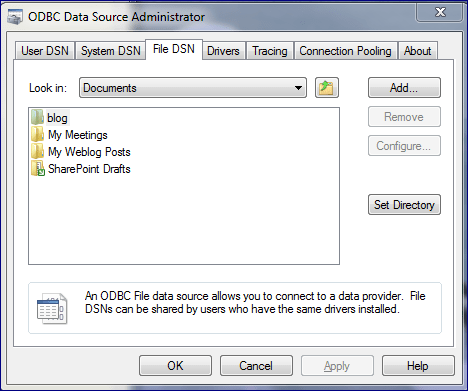
Go to the ODBC Data Sources Administrator and click on the File DSN tab.
Click on Add, Choose HIVE, Click Next, Click Browse to choose a location of the file; click Finish.
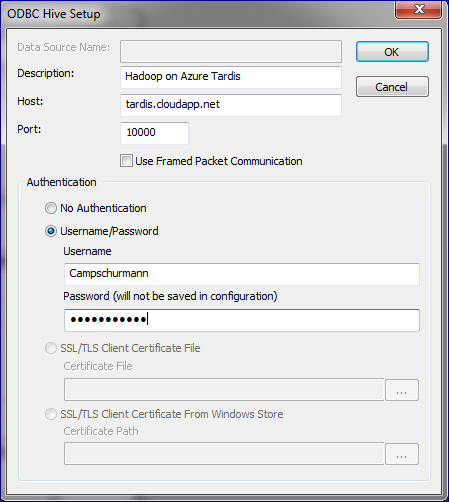
Open the File DSN you just created and click Configure. The ODBC Hive Setup and configure the host (e.g. [clustername].cloudapp.net) and authentication information (the username is what you had specified when you had created the cluster)
. . 3) Connect PowerPivot to Hadoop on Azure via the HiveODBC File DSN
Open up the PowerPivot ribbon and click on the Get External Data from Other Sources.
From the Table Import Wizard, click on the Others (OLEDB/ODBC) and click Next.
From here, click Build and the Data Link Properties, click on Provider, and ensure the Microsoft OLEDB Provider for ODBC Drivers is selected.Click Next.
In the Data Link Properties dialog, choose “Use connection string”, and click Build and choose the File DSN you had created from Step #2. Enter in the password to your Hadoop on Azure cluster. Click OK.
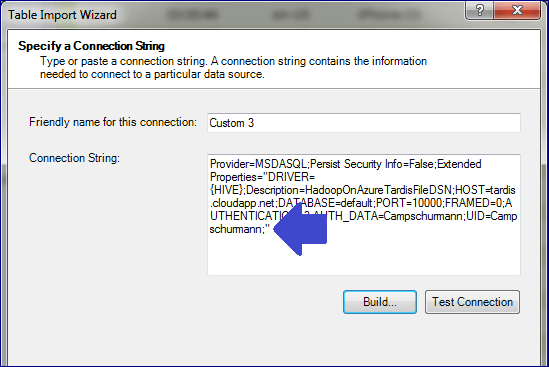
The Data Link Properties now contains a connection string do the Hadoop on Azure cluster.
Note, after this dialog, verify that the password has been entered into the connection string that that has been built into the Table Import Wizard. Note, the blue arrow points to a lack of a PWD=<password> clause. If the password isn’t specified, make sure to add it back in.
Click OK, click Next. From here you will get the Table Import Wizard and we are back to the usual PowerPivot steps.
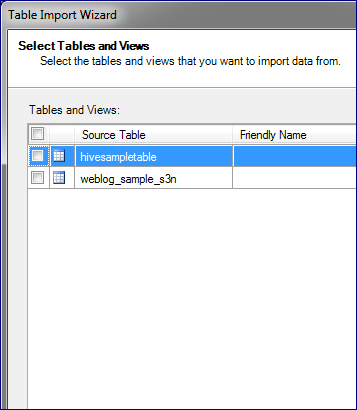
Click on “Select from a list of tables and views to choose the data to import”
Choose your table (e.g. hivesampletable) and import the data in.
PowerPivot for Excel connecting to Hadoop on Azure cluster
It looks like a lot of steps but once you get into the flow of things, it’s actually a relatively easy flow.
i’m trying to follow your demo but i’m experiencing problems : cannot turn port 10000 on. each time i set it on, when i come back to setting page it’s off again… ever heard about this ?
Hi Damien, glad you like the post. Sorry about the port issue, we did an update yesterday that accidentally turned the port toggle off. We’re fixing this now and will update the DL. HTH! Denny
[…] post Connecting PowerPivot to Hadoop on Azure – Self Service BI to Big Data in the Cloud provided the step-by-step details on how to connect PowerPivot to your Hadoop on Azure cluster. […]
[…] Hadoop on Azure–An #awesomesauce way to view Big Data in the Cloud in a 2/10/2012 post: The post Connecting PowerPivot to Hadoop on Azure – Self Service BI to Big Data in the Cloud provided the step-by-step details on how to connect PowerPivot to your Hadoop on Azure cluster. And […]
I haven’t personally tried it on AWS yet but it should be compatible with Hive 0.7.1. Checking AWS’ documentation at http://aws.amazon.com/elasticmapreduce/faqs/#hive-9 – it appears that their Elastic Map Reduce 0.20 and 0.20.205 both support Hive 0.7.1. So it should work provided that the ports are open to allow for that type of connection. Worst case scenario, you can setup your HadoopOnAzure cluster and connect to Amazon S3 from Azure.
Note this is a personal observation, NOT an official Microsoft response, eh?! 🙂
[…] A Microsoft kifejlesztett egy ODBC drivert a hadoop HIVE tábláihoz, amelyen keresztül a Microsoft BI alkalmazások közvetlenül elérhetik a hadoop tábláit. Különösen azoknak lesz ez nagy segítség, akiknek eddig állomásoztatniuk kellett egy relációs adatbázisban a hadoopból kiolvasott adatokat csak azért, hogy például az Analysis Services át tudja emelni azokat. HiveODBC driver hadoop-hozAz Excelen keresztüli lekérdezéshez telepítenünk kell az Excel Hive Add-int és utána bombázhatjuk is a Hadoop clustert a HiveQL lekérdezéseinkkel (egy egszerű lekérdezés szerkesztőt kapunk hozzá) További infó: How To Connect Excel to Hadoop on Azure via HiveODBCA PowerPivot-on keresztüli lekérdezéshez itt egy remek lépésről lépésre példa: Connecting PowerPivot to Hadoop on Azure – Self Service BI to Big Data in the Cloud […]
[…] It sounded strange until we had announced during the PASS 2011 Day One Keynote which I also called out in my post Connecting PowerPivot to Hadoop on Azure – Self Service BI to Big Data in the Cloud. […]









Leave a Reply